Vidu Q4 Preview gives creators more ways to direct a short video: start with a picture, bring together references, and describe how a scene should move and sound. The useful question is where those controls fit into your next project.
This guide separates documented capabilities from practical suggestions. It is based on official material checked on October 12, 2026, rather than a hands-on benchmark. Vidu Q4 Preview is not currently integrated into NewYouGo. You can explore NewYouGo's available video tools separately, or follow the Vidu links below to try Q4 Preview itself.
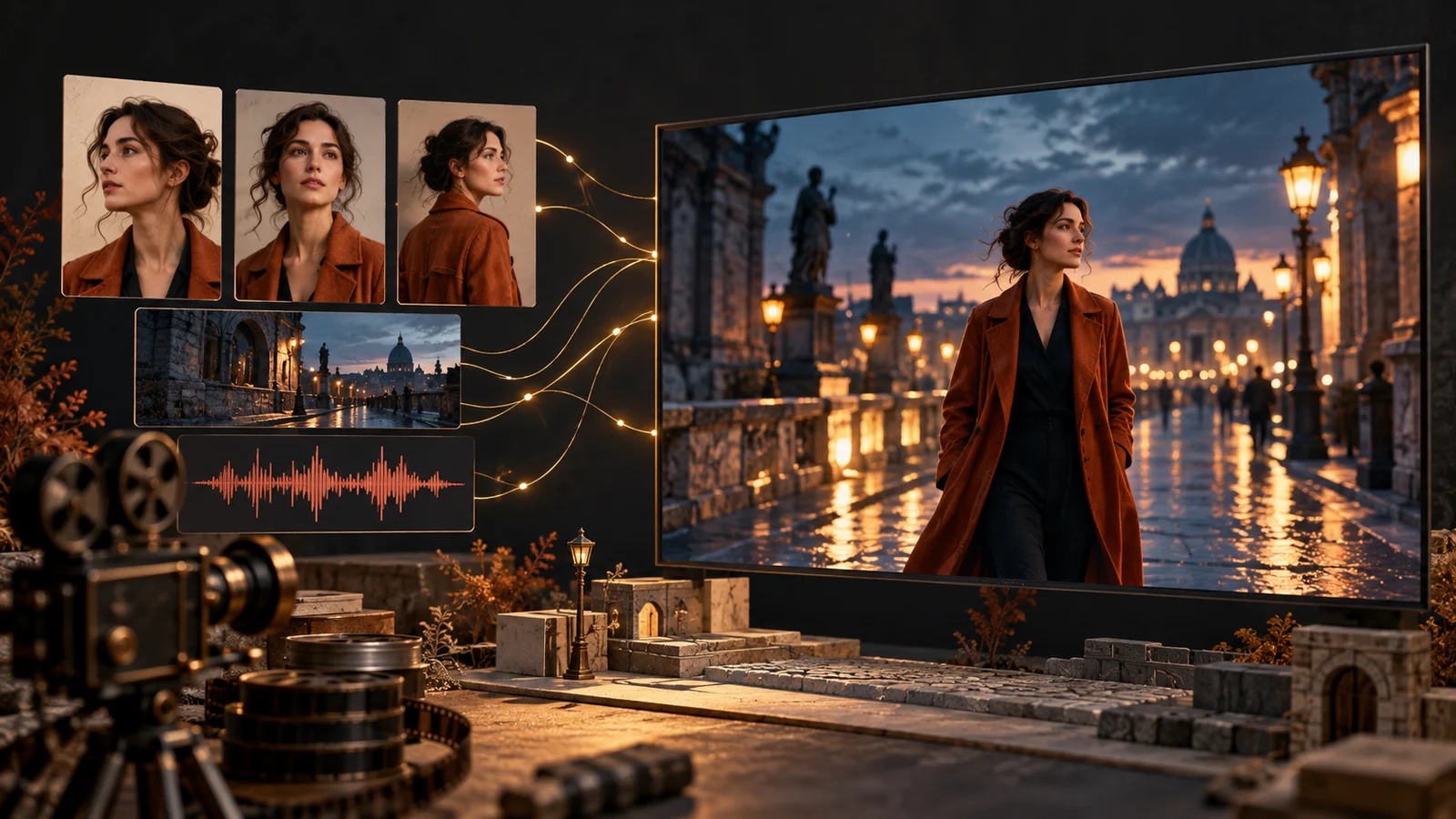
Original AI-generated editorial illustration for NewYouGo. This is a workflow concept, not a Vidu Q4 sample or product screenshot.
What is Vidu Q4 Preview?
Vidu Q4 Preview is ShengShu Technology's public preview of its next-generation video model. The official update log dates the release to October 7, 2026 and highlights reference voices, more reference images, 2K and 4K output, and improvements to performance, motion and effects.
The word Preview matters. ShengShu describes this release as arriving ahead of the full Q4 model. Its launch announcement presents the model as a tool for developing scenes and trying variations. Features and commercial terms can still change.
Higher resolution is useful for delivery, but it does not tell you whether a face remains consistent, a hand moves naturally, or a line lands at the right moment. Judge the shot you need to make, not just its export size.
Two ways to start a video
The Q4 Preview documentation currently describes two input routes:
| Route | What you provide | A useful first experiment |
|---|---|---|
| Image to video | One starting image and a motion description | Animate a product still with a gentle camera move |
| Reference to video | 1–15 images, a prompt, and optionally up to 3 audio references | Plan a scene around a recurring character or product |
Both documented APIs offer 3–16 seconds and resolution choices from 540p through 4K, with audio output controls. The image-to-video endpoint can generate dialogue and sound effects; the reference route accepts MP3 voice references of 3–12 seconds each. These are API specifications; confirm the controls exposed by the web interface you use. Sources: image-to-video documentation and reference-to-video documentation.
Choose image to video when the composition is already settled. Choose references when several visual ingredients need to work together. More references are not automatically better: an unrelated image can create another ambiguity about what the model should preserve.
Build a small reference kit
For a first attempt, make each reference earn its place. One clear character portrait, one wardrobe view and one setting are easier to direct than a folder of nearly identical pictures. Use consistent lighting where possible and remove images that contradict the intended scene.
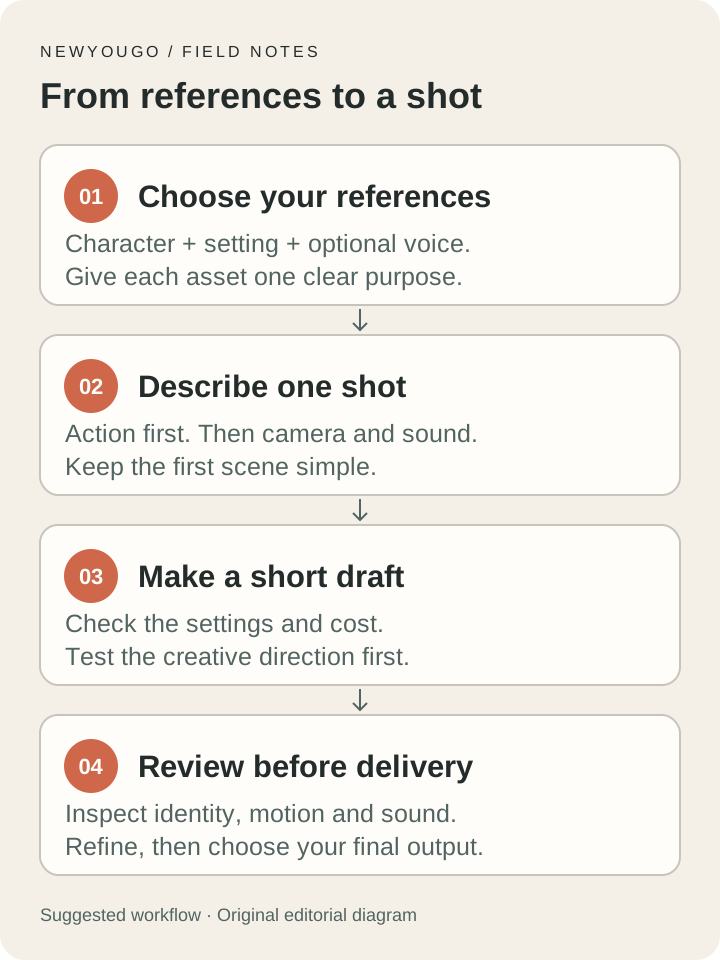
A suggested planning workflow. Start small, review the result, then increase complexity.
Before uploading anything, write down the job of each asset: “this establishes the face,” “this fixes the coat,” or “this defines the room.” Use images and voice recordings you have permission to use, especially when working with a recognizable person.
If you need to develop a starting visual, NewYouGo's image creation tools can help you explore a composition. Export the chosen image and prepare it for the video tool you intend to use. This is an asset-preparation workflow, not a direct Q4 connection.
A practical first-shot workflow
1. Write a six-second scene
Pick one action with a clear beginning and ending. A person entering a room and setting down a cup is enough for a useful test. Combining a location change, a costume change and a long conversation makes it harder to identify what went wrong.
2. Separate the subject from the camera
Describe what the subject does, then explain what the camera does. Add the atmosphere and sound last. Here is an original prompt to adapt; it has not been tested in Q4 Preview:
A woman in a rust-orange coat pauses beside a café window at blue hour. She looks at the light inside, then turns toward the door. The camera makes a slow, steady push from a medium shot. Keep her coat and hairstyle consistent with the references. Warm window light falls across her face. Soft footsteps and distant street ambience; no dialogue. Six seconds, one continuous shot.
For a product, replace the character action with a simple reveal. Specify which details must stay stable: the handle, label position, silhouette or surface finish. Add precise brand text during editing if the generated lettering is unsuitable.
3. Make a draft before a delivery render
Open the official Vidu platform, check that Q4 Preview is available for your account, and choose the appropriate input mode. Set the duration, resolution and sound options that the interface offers. Review its current cost before submitting.
Start with a short, lower-resolution draft if that fits the shot. Check the motion and framing first. A more expensive export will not fix an unclear direction. Increase resolution after the creative decisions work, while recognizing that a new generation may differ from the draft.
4. Review three things separately
- Identity: Does the face, wardrobe or product remain recognizable throughout the clip?
- Motion: Do movements connect naturally, including the moments before and after a cut?
- Sound: Is the dialogue understandable, and do footsteps or impacts occur at the right moment?
Watch once at normal speed, once without sound, and once while listening closely. Change one instruction for the next attempt so you can tell whether that change helped. Save the prompt, settings and the clip you are comparing.
How much does Vidu Q4 Preview cost?
There is no single price that safely represents every plan and region. At the time of writing, Vidu's API pricing documentation lists the following credit consumption for Q4 Preview image-to-video and reference-to-video:
| Resolution | Listed credits per second | Calculated credits for 6 seconds |
|---|---|---|
| 540p | 9 | 54 |
| 720p | 19 | 114 |
| 1080p | 24 | 144 |
| 2K | 38 | 228 |
| 4K | 78 | 468 |
The final column is simple arithmetic, not a quoted package price. These are Vidu API credits, not NewYouGo credits. Check the currency, credit conversion, discounts and account-specific terms shown by Vidu before paying.
Two company announcements also use different dollar figures. The PR Newswire launch release advertises promotional pricing from $0.014 per second, with plan and regional qualifications. The GlobeNewswire release lists $0.045 per second at 540p through $0.39 at 4K, and announces a 30% discount through November 30, 2026. Do not combine the lowest headline with an arbitrary resolution or assume it is a permanent rate.
Budget for the attempts you need, too. As a planning example, four six-second drafts at the listed 720p rate total 456 credits. Adding one six-second 4K generation brings that illustrative total to 924 credits, before any applicable discount. That is a budget example, not an estimate of how many attempts will succeed.
What changes from an older Vidu workflow?
Treat Q4 Preview as its own model selection. Do not carry over every mode or parameter from a Q3 project: the current Q4 documentation covers image-to-video and reference-to-video, while the reference API explicitly says saved-subject invocation is not supported yet. Recheck any workflow that depends on that feature. See the Q4 reference documentation.
ShengShu reports faster generation and improved creative results, but those claims do not establish your queue time or your project's success rate. To compare models, use the same permitted source assets, the same short scene and the same review criteria. Record elapsed time and the number of usable takes. This guide does not claim a measured speed advantage or a quality ranking.
Is Q4 Preview a good fit for your project?
It is worth evaluating when you already have a visual direction and want to test a short scene, a recurring character, or a product in motion. Start with one shot that would be valuable even if the rest of the project stays in your existing workflow.
Keep real screen recordings for a software demonstration where exact buttons and text matter. For tightly specified client work, test the required details before planning a full sequence around a preview model. Leave time for editing, sound cleanup and final review.
If your immediate goal is to make something with NewYouGo's current tools, browse the Seedance 2 Fast guide and video generator. The available model selector determines what you can use today; this article is not an announcement of Q4 availability on NewYouGo.
Frequently asked questions
Can I try Vidu Q4 Preview on NewYouGo?
Not currently. Use Vidu's official product or API for Q4 Preview. NewYouGo's video tools have their own supported models and pricing.
Does this article include actual Q4-generated examples?
No. The cover is an original AI-generated editorial illustration and the workflow diagram is an original graphic. The prompt and budgeting examples are suggestions, not results from a completed generation test.
Should I begin at 4K?
Only when the test depends on delivery resolution. For decisions about action and framing, a shorter draft can be a more economical starting point. Review the actual result before investing in further takes.
Where should I check for changes?
Use Vidu's official update log, the API pages linked above and the current price shown in your account. This guide reflects information checked on October 12, 2026.